Stripe e-invoicing for Germany: ZUGFeRD and XRechnung
Stripe creates no EN 16931 e-invoices. Turn each Stripe invoice into ZUGFeRD or XRechnung automatically, validate it and email it to German buyers.
Mis à jour le 5 novembre 2026
If you bill business customers in Germany with Stripe, sooner or later one of them will ask for an e-invoice: a ZUGFeRD PDF or an XRechnung that their accounting software imports without typing. Stripe gives you a PDF, but not an e-invoice after the European standard EN 16931. This article explains the German mandate, which format fits, what your Stripe invoices need to contain, and how to turn every Stripe invoice into a validated e-invoice and email it to the buyer automatically, without code.
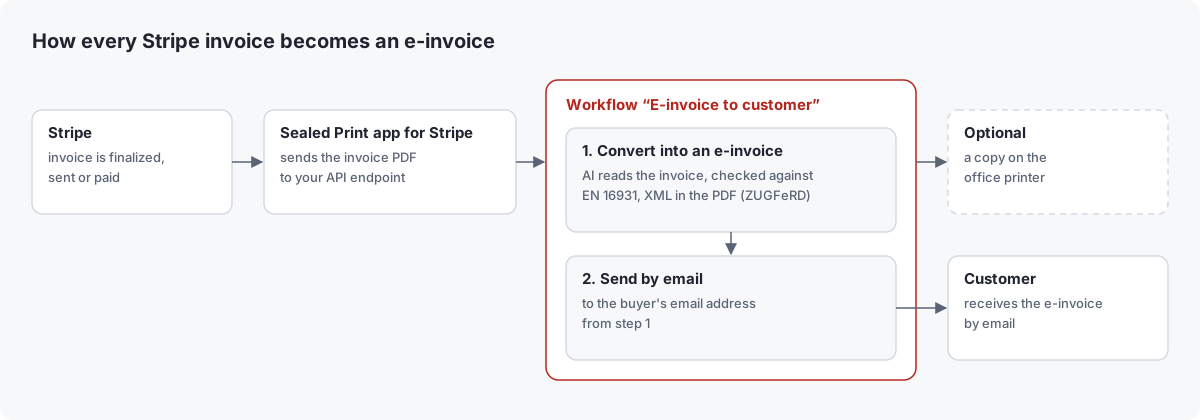
Does Stripe support e-invoicing?
Not for ZUGFeRD or XRechnung. Stripe's documentation on e-invoicing
says that Stripe Invoicing creates invoice records, but does not itself generate or transmit compliant e-invoice
files. For that, Stripe points to apps in the Stripe App Marketplace or to an integration of your own that listens to
invoice webhooks such as invoice.finalized.
What Stripe creates for every finalized invoice is a PDF and a hosted invoice page, both made for people. An e-invoice is structured data: an XML file after EN 16931, on its own (XRechnung) or embedded in the PDF (ZUGFeRD). A PDF is not an e-invoice under German law, even when it arrives by email.
Germany's e-invoicing mandate in short
Germany introduces e-invoicing between businesses in three stages:
| From | Receiving | Issuing |
|---|---|---|
| 1 January 2025 | Every business must be able to receive e-invoices | Paper and PDF still allowed (PDF with the recipient's consent) |
| 1 January 2027 | Unchanged | E-invoices required for businesses with more than €800,000 total turnover in 2026 |
| 1 January 2028 | Unchanged | E-invoices required for all businesses, with a few exceptions |
The rules are aimed at invoices between businesses that are both established in Germany. Invoices to consumers are not affected, nor are small businesses under § 19 of the German VAT Act, invoices up to €250 gross and travel tickets. Any transmission path is allowed, including email.
If your company is based outside Germany, whether the German rules apply to your invoices depends on where your supplies are taxable and whether you have an establishment in Germany. Either way, your German customers have been able to receive e-invoices since 2025, and many prefer them because their software books them without manual entry.
ZUGFeRD or XRechnung?
Both formats follow EN 16931 and meet the German mandate. They differ in what the recipient gets:
| ZUGFeRD (also Factur-X) | XRechnung | |
|---|---|---|
| What it is | A PDF with the invoice data embedded as XML | The German standard of the federal and state governments, structured data |
| Readable for people | Yes, the PDF looks like your Stripe invoice | Only with a viewer |
| Typical recipients | Businesses and freelancers | Public authorities, also accepted between businesses |
| Extra data needed | None beyond EN 16931 | Buyer reference (Leitweg-ID for authorities), your contact person, phone and email, the buyer's email |
For business customers, ZUGFeRD with the profile EN 16931 is usually the right choice: people read the PDF as before, software reads the XML. Choose XRechnung when a customer asks for it, and always for German public authorities. If a customer names a format, use that one.
What your Stripe invoice needs to contain
An e-invoice needs the same mandatory details as any invoice, only as structured data. A standard Stripe invoice already shows most of them. For ZUGFeRD, a Stripe invoice that shows your address, your VAT ID and the customer's email address is usually enough.
| Detail | Where it comes from in Stripe |
|---|---|
| Your company name and address | Your account's public business details |
| Your VAT ID or tax number | Your account's tax IDs, shown on invoices (in the API account_tax_ids) |
| Customer name and address | The customer's billing details |
| Customer VAT ID | The customer's tax IDs (tax_ids); needed for reverse charge and supplies within the EU |
| Customer email | The customer's email, printed on the invoice; it becomes the recipient of the e-invoice |
| Invoice number and date, items, quantities, prices, tax rates and totals | Created by Stripe for every invoice |
| Due date or payment terms | Needed when an amount is still open; Stripe shows a due date for invoices sent for payment |
| Reason for no VAT, for example reverse charge | A note on the invoice, for example in the footer |
XRechnung needs more: a buyer reference (for public authorities their Leitweg-ID) and your contact person with phone and email. Stripe has no dedicated fields for these, but you can put them on the invoice:
- Custom fields: Stripe invoices take up to four name and value pairs that appear on the PDF, for example
“Buyer reference: 991-12345-67”. You can set them per invoice or per customer (in the API
invoice_settings.custom_fieldsof the customer), so every invoice of a customer carries their Leitweg-ID. - Footer: a default footer in your invoice settings is a good place for your contact person, phone and email.
- Public business details: Stripe can show your support email and phone on invoices.
Use clear labels such as “Buyer reference” or “Leitweg-ID”: the conversion reads what is printed on the PDF.
Automate it with the Sealed Print app for Stripe
The Sealed Print app for Stripe sends every invoice PDF to an API endpoint of your Sealed Print organization as soon as the invoice is finalized, sent or paid (you choose). The endpoint's target is a workflow with two steps: Convert into an e-invoice reads the invoice, validates it and embeds the XML, and Send by email sends the e-invoice to the buyer's email address read from the invoice.
Before you start
- A Sealed Print organization. AI steps count AI actions; Team and Business include a monthly volume, Free uses pay per use (switch it on under Settings > Billing).
- Email in your plan and the outbound channel Email switched on by an admin under Settings > Outbound channels.
- The inbound channel REST API switched on under Settings > Inbound channels.
- A Stripe account in which you may install apps.
Step by step
Create the workflow. In Sealed Print, go to Targets > Workflows and select New workflow. Enter a name such as “E-invoice to customer”; the identifier, for example
e-invoice, is filled in from it.Add the conversion. Under Steps, select Add step and choose Convert into an e-invoice. Set the Format to ZUGFeRD (EN 16931) or XRechnung. Under If the invoice fails the checks, choose Stop the job to send only valid e-invoices, or Continue with the original document to send the Stripe PDF anyway. Keep the Step ID
invoice.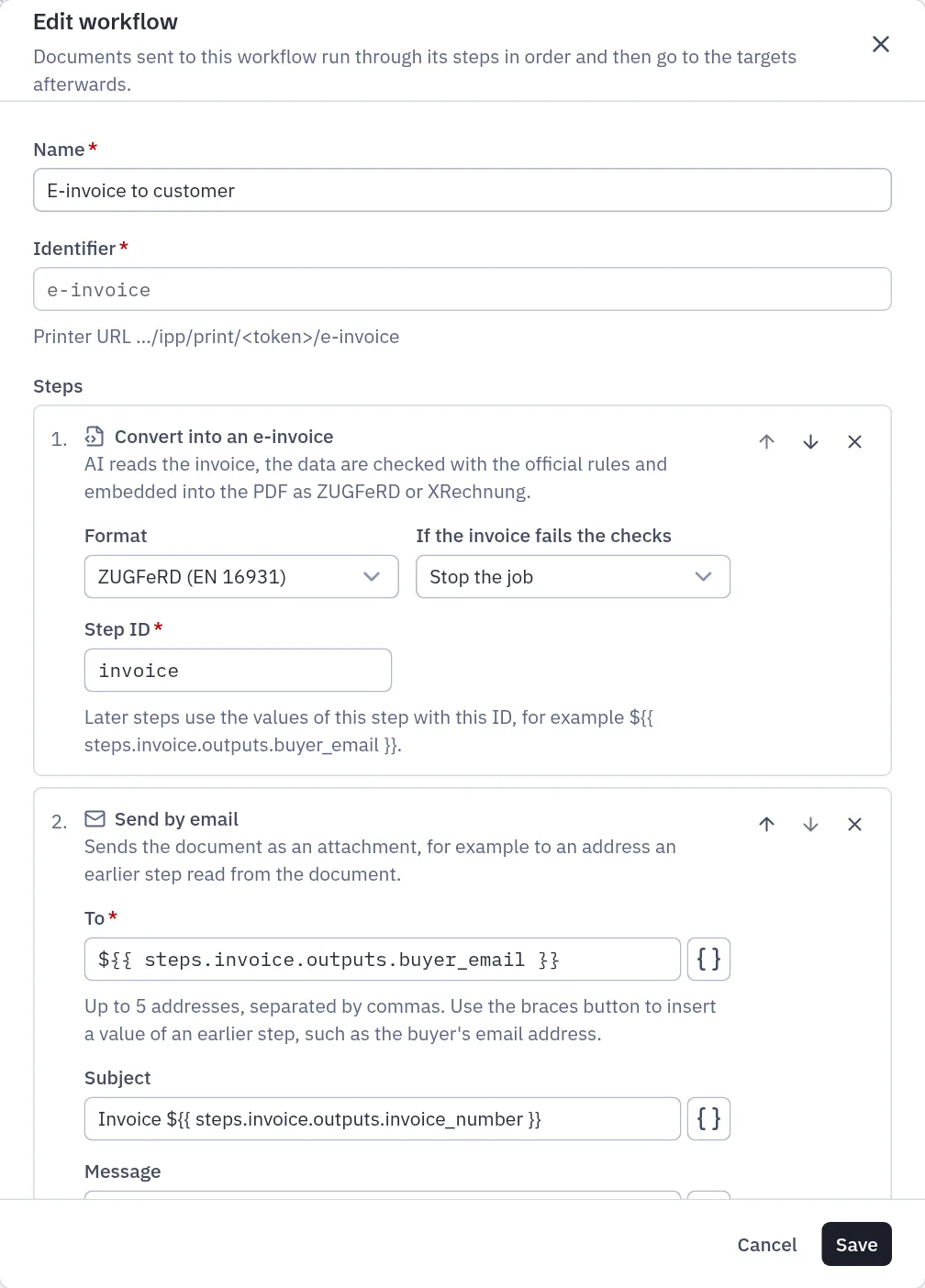
The workflow with both steps Add the email. Select Add step again and choose Send by email. In To, select the braces button next to the field and then Buyer's email address. The field now shows
${{ steps.invoice.outputs.buyer_email }}; you never have to type this syntax yourself.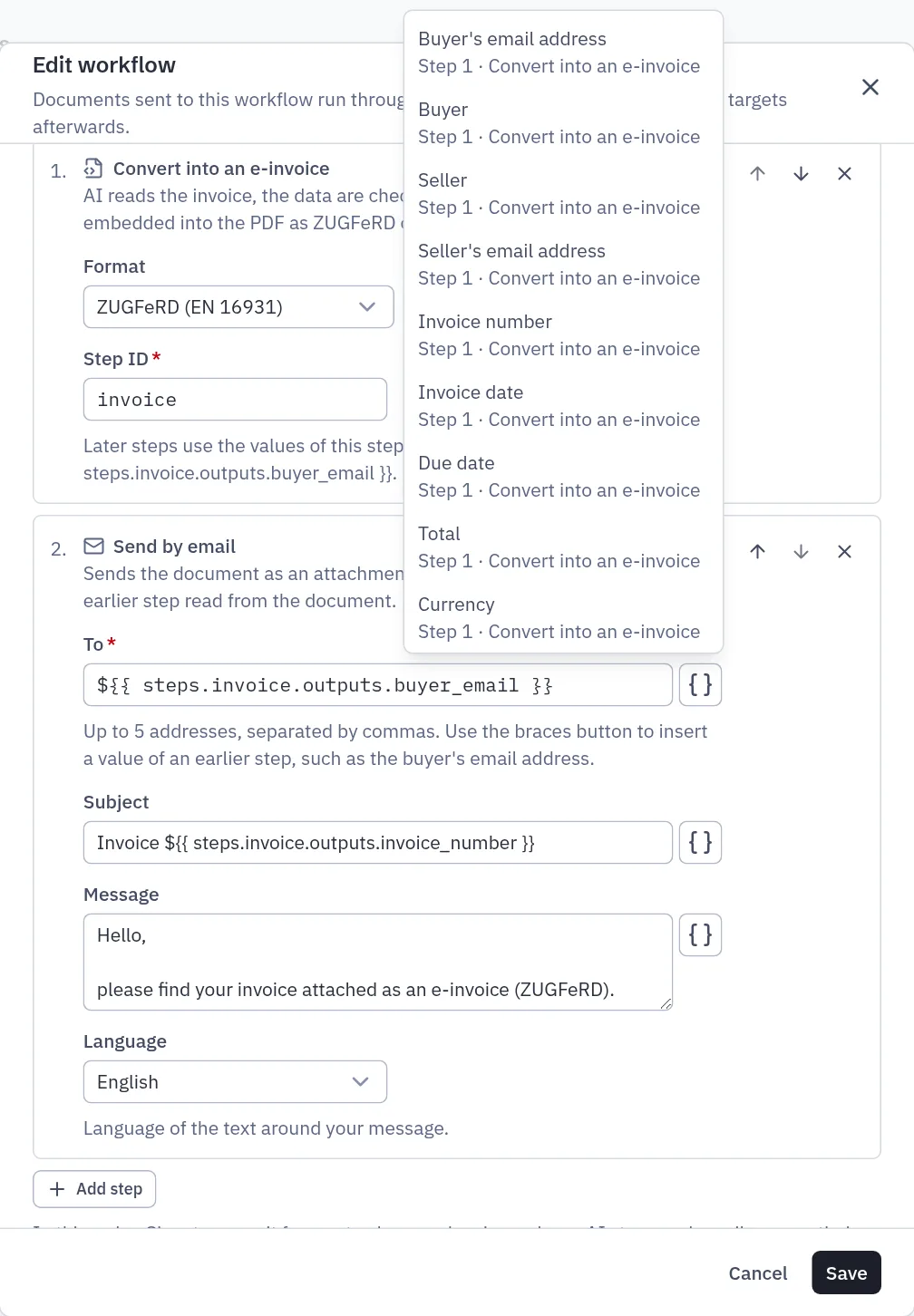
The braces button inserts the values read in step 1 Write the email. Insert the Invoice number into the Subject the same way, for example “Invoice
${{ steps.invoice.outputs.invoice_number }}”, add a short Message and choose the Language of the text around it, for example German for German customers.Optional paper copy. Under Afterwards send to, choose a destination such as the office printer if you also want every e-invoice printed for your files. Leave it empty otherwise. Then select Create.
Create the API endpoint. Go to Sources > API endpoints, select New API endpoint, choose the workflow as the Target and copy the Endpoint URL. See API endpoints.
Install the app. In the Stripe Dashboard, install Sealed Print from the Stripe App Marketplace and open its settings. Paste the URL into API endpoint URL.
Set the invoice rule. Under Documents, turn on Print automatically for Invoices. The label says print, but the document goes to the workflow. Choose When: When the invoice is finalized sends the e-invoice as soon as the invoice exists, When the invoice is paid only for paid invoices. Keep Copies at 1. Leave Identifiers empty to use the endpoint's workflow, or enter
e-invoice.Test it. Select Save, then Check connection. When it says “Everything is ready”, finalize a test invoice in Stripe's test mode, which has its own app settings, and look at the job in Sealed Print.
Each invoice is processed once per event, even if Stripe sends the event again. To send a single invoice by hand, open it in the Stripe Dashboard and select Print with Sealed Print in the app panel; it uses the same rule. All details are in the guides Print Stripe documents and Workflows.
If Stripe also emails invoices to your customers, they receive both emails. Decide whether to keep Stripe's email, for example for its payment link, and mention the e-invoice in your message so the buyer knows which file to book.
How the e-invoice is validated
The step Convert into an e-invoice works in four stages:
- AI (Claude by Anthropic) reads the invoice data from the PDF: parties, VAT IDs, items, tax rates, totals and payment details.
- Our checks look for missing mandatory data and recalculate the totals.
- The XML in the CII syntax is checked with the official Schematron rules: the EN 16931 rules of CEN and, for XRechnung, the CIUS XRechnung 3.0 rules of the KoSIT, the German coordination office for IT standards.
- Only a valid result is embedded into your PDF: as
factur-x.xmlfor ZUGFeRD (profile EN 16931), or asxrechnung.xmlfor XRechnung. The PDF is marked as PDF/A-3 and becomes a new version of the job's document; the original stays available.
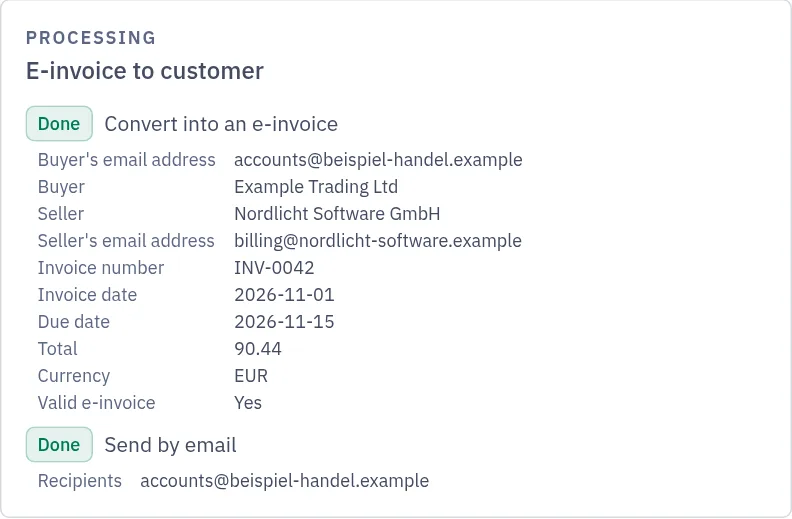
The job detail lists every value the step read, whether the invoice is a valid e-invoice and to whom the email went. If an invoice fails the checks, the job stops with “The invoice does not pass the e-invoice checks. The details show what is missing.” and names the missing data or the failed rules. Complete the data in Stripe, for example the customer's address or your VAT ID, so that future invoices pass. A finalized Stripe invoice can no longer be changed, so for the failed one, fill in the missing values by hand in the free tool described below.
The content of the invoice remains your responsibility. The checks catch missing data and totals that do not add up, but they cannot know whether a price is right. Look at the first invoices in the job detail before you rely on the automation.
Sending e-invoices by email
Email is an allowed way to deliver e-invoices in Germany. The step Send by email sends the e-invoice as an attachment from “your organization via Sealed Print”; replies go to the owner of the API endpoint. Each email appears as a delivery of the job with its status. To takes up to five addresses, for example the buyer's and your bookkeeping address. If the invoice shows no buyer email, the job ends with “The email step found no valid recipient.” A workflow sends at most 100 emails per hour; further emails wait instead of failing.
If a public authority wants the XRechnung as a separate XML file, for example for its invoice portal, open the PDF's
attachments in a PDF reader and save xrechnung.xml, or use the free tool below, which also offers the XML alone.
Costs: a worked example
Each run of Convert into an e-invoice is one AI action per started five pages, so a typical Stripe invoice of one or two pages costs one AI action, €0.01. Every email sent counts as an email. Emails of a workflow are not deliveries; only a printed copy counts as one.
Example: 150 Stripe invoices a month, each sent as a ZUGFeRD e-invoice by email.
| Plan | Base price | AI actions | Emails | Per month |
|---|---|---|---|---|
| Free with pay per use | €0 | 150 × €0.01 = €1.50 | 150 × €0.10 = €15.00 | €16.50 |
| Team | €14 | 150 of 200 included | 100 included, 50 × €0.03 = €1.50 | €15.50 |
| Business | €29 | 150 of 2,000 included | 150 of 1,000 included | €29.00 |
Team also includes 500 deliveries, enough for a printed copy of every invoice. All prices and VAT details are on the pricing page and in Plans and billing.
Converting a single invoice for free
For the odd invoice, you do not need a workflow. The free tool PDF to e-invoice reads a PDF invoice with AI, lets you check and complete every value, validates the result with the same official rules and gives you a ZUGFeRD PDF, the XML or an XRechnung. It needs no account and stores nothing. It also shows whether your Stripe invoices contain everything before you automate.
To download or print Stripe invoices as plain PDFs, see How to download and print Stripe invoices.
Frequently asked questions
Does Stripe create ZUGFeRD or XRechnung invoices?
No. According to Stripe's documentation, Stripe Invoicing does not itself generate compliant e-invoice files. It creates a PDF and a hosted invoice page. ZUGFeRD or XRechnung need an app from the Stripe App Marketplace, such as the Sealed Print app for Stripe with a workflow, or an integration of your own.
Is a Stripe invoice an e-invoice?
Not under German law. A Stripe invoice PDF is an “other invoice”, like paper. An e-invoice needs structured data after EN 16931, as an XRechnung or as a ZUGFeRD PDF with embedded XML.
Do I need e-invoices if I sell to German businesses from abroad?
The German mandate is aimed at invoices between businesses established in Germany. Whether it covers your invoices depends on where your supplies are taxable and whether you have an establishment in Germany. Independently of that, German customers can receive e-invoices and often prefer them, because their software books them automatically.
Can I send e-invoices by email?
Yes. German law allows any transmission path for e-invoices, including email. The step Send by email attaches the e-invoice and sends it to the buyer's address read from the invoice.
Do I need to write code?
No. You install the Sealed Print app from the Stripe App Marketplace, paste the URL of an API endpoint and create a workflow with two steps in the browser. The buyer's email address is chosen from a menu.
What happens if a Stripe invoice fails the checks?
You decide in the workflow. With Stop the job, nothing is sent and the job detail names the missing data or the failed rules. With Continue with the original document, the buyer receives the Stripe PDF as it is.
What does it cost?
One AI action per invoice of up to five pages, €0.01, plus the email. Team includes 200 AI actions and 100 emails a month, Business 2,000 and 1,000; on Free both are pay per use. Single invoices can be converted with the free tool.